
Abstract Review
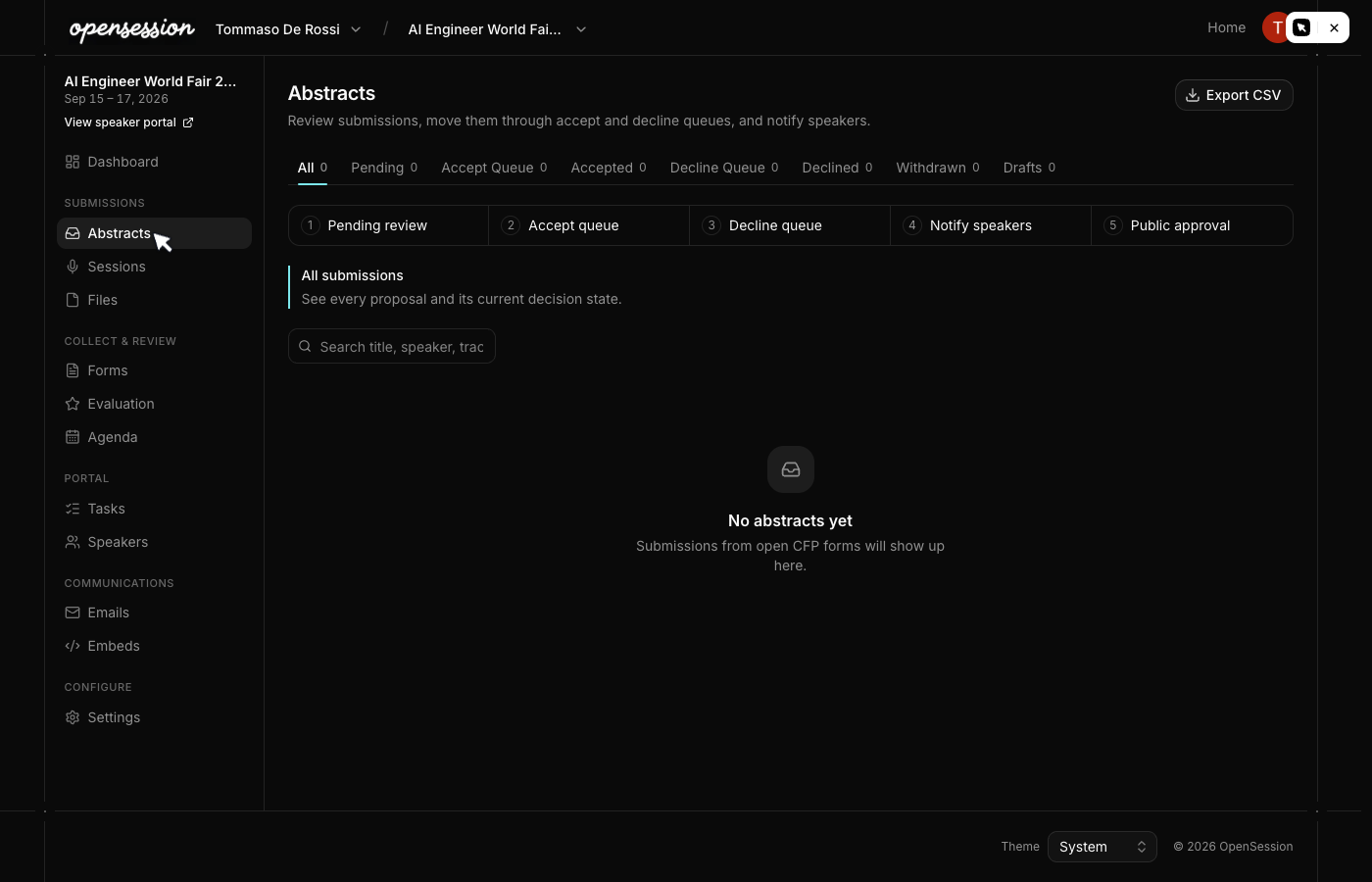
Every submitted talk lands in the Abstracts table with status tabs that let you
filter the full pipeline at a glance. Your team votes, scores, and comments on each
submission. When you are ready, batch-accept or decline talks and notify speakers
automatically.
The abstracts table
All submissions appear in a single table with status tabs across the top:
| Tab | What it shows |
| All | Every submission regardless of status |
| Pending | New submissions waiting for review |
| Accept Queue | Talks shortlisted for acceptance, not yet notified |
| Accepted | Talks the organizer has accepted and notified |
| Decline Queue | Talks shortlisted for rejection, not yet notified |
| Declined | Rejected talks that speakers have been notified about |
| Withdrawn | Talks the speaker withdrew before a decision |
| Drafts | Incomplete submissions that speakers started but did not finish |
Each tab shows a count badge so you can see the pipeline at a glance.

Voting and scoring
Team members vote on each submission with Yes, Maybe, or No. They can also
leave a 1-5 star rating and written comments. The abstracts table shows:
- Average score across all reviewers
- Vote distribution (how many Yes, Maybe, No)
- Comment count
Reviewers see submissions assigned to them without administrative access to event
settings. They can browse, vote, and comment, but cannot accept or decline talks.
Accept and decline queues
The queue system lets you build a shortlist before notifying anyone:
  ┌──────────┐     move to queue      ┌─────────────────┐      Notify       ┌──────────────┐
  │ Pending  │ ──────────────────────>│  Accept Queue   │  ────────────────>│  Accepted    │
  └──────────┘                        └─────────────────┘                   └──────────────┘
       │                                                                          │
       │         move to queue      ┌─────────────────┐      Notify       ┌──────────────┐
       └──────────────────────────> │  Decline Queue  │ ────────────────> │  Declined    │
                                    └─────────────────┘                   └──────────────┘
- Select talks from the Pending tab
- Move them to Accept Queue or Decline Queue
- Review the queue to make sure the list is right
- Notify with one click. Each speaker gets a decision email
The queue is a staging area. You can move talks back to Pending before notifying.
Once notified, the status is final.
What happens on acceptance
When a talk is accepted and the speaker is notified:
- The session status changes to Accepted and its stage moves from Abstract to Session
- Decision emails are enqueued (acceptance or rejection, with the organizer's contact email as reply-to)
- Speaker tasks are created automatically: "Complete Speaker Profile" and "Upload Session Materials"
- The speaker gains access to the portal where they can complete onboarding
CSV export
Export all abstracts to CSV for offline review, committee meetings, or archival.
The export includes every field value, status, reviewer scores, and timestamps.
Evaluation rounds
For events that need structured evaluation, OpenSession supports evaluation rounds
with dedicated reviewer pools, track-filtered assignments, and progress tracking.
Each round uses a form-based scorecard, and results are aggregated with weighted scores.