
Speaker Portal
Accepted speakers get access to a self-service portal where they complete onboarding
tasks, manage their profile, and track their submissions. The portal is a separate
interface from the admin dashboard, with its own navigation and focused scope.
What speakers see
The portal has four sections:
| Section | Purpose |
| Home | Overview of submissions, profile status, and outstanding tasks |
| Submissions | View and (if still pending) edit submitted talks |
| Profile | Complete speaker profile: name, bio, headshot, social links |
| Tasks | List of assigned tasks with completion status |
Speakers sign in with the same verified email account they used to submit their talk.
The system matches their verified email to existing speaker records, including
records created by co-speaker entries from other submissions.
Onboarding tasks
When a talk is accepted, OpenSession automatically creates two standard tasks:
- Complete Speaker Profile: fill out the Speaker Profile form (name, bio, job title, company, pronouns, headshot, website, LinkedIn, X/Twitter)
- Upload Session Materials: submit presentation slides, cover image, and A/V requirements through the Session Materials form
Both tasks use the same MDX form engine as the CFP. The organizer can customize the
form content, add fields, or change requirements.
  Talk accepted                    Tasks auto-created               Speaker completes
  ┌─────────────────┐            ┌─────────────────────┐          ┌─────────────────────┐
  │ Status: ACCEPTED│──────────→│ Complete Profile    │ ────────→│ Form submitted      │
  │ Stage: SESSION  │            │ Upload Materials    │          │ Files in R2         │
  │ Emails sent     │            │ (auto-assigned)     │          │ Task marked done    │
  └─────────────────┘            └─────────────────────┘          └─────────────────────┘
Custom tasks
Organizers can add more tasks beyond the two defaults. Common examples:
- Travel and visa information
- Dietary preferences
- Release agreement or code of conduct acknowledgment
- Hotel and logistics details
- A/V equipment checklist
Each task can be Form-based (speaker fills out a form) or Manual (speaker
clicks "Mark complete" after doing something offline).
Task tracking for organizers
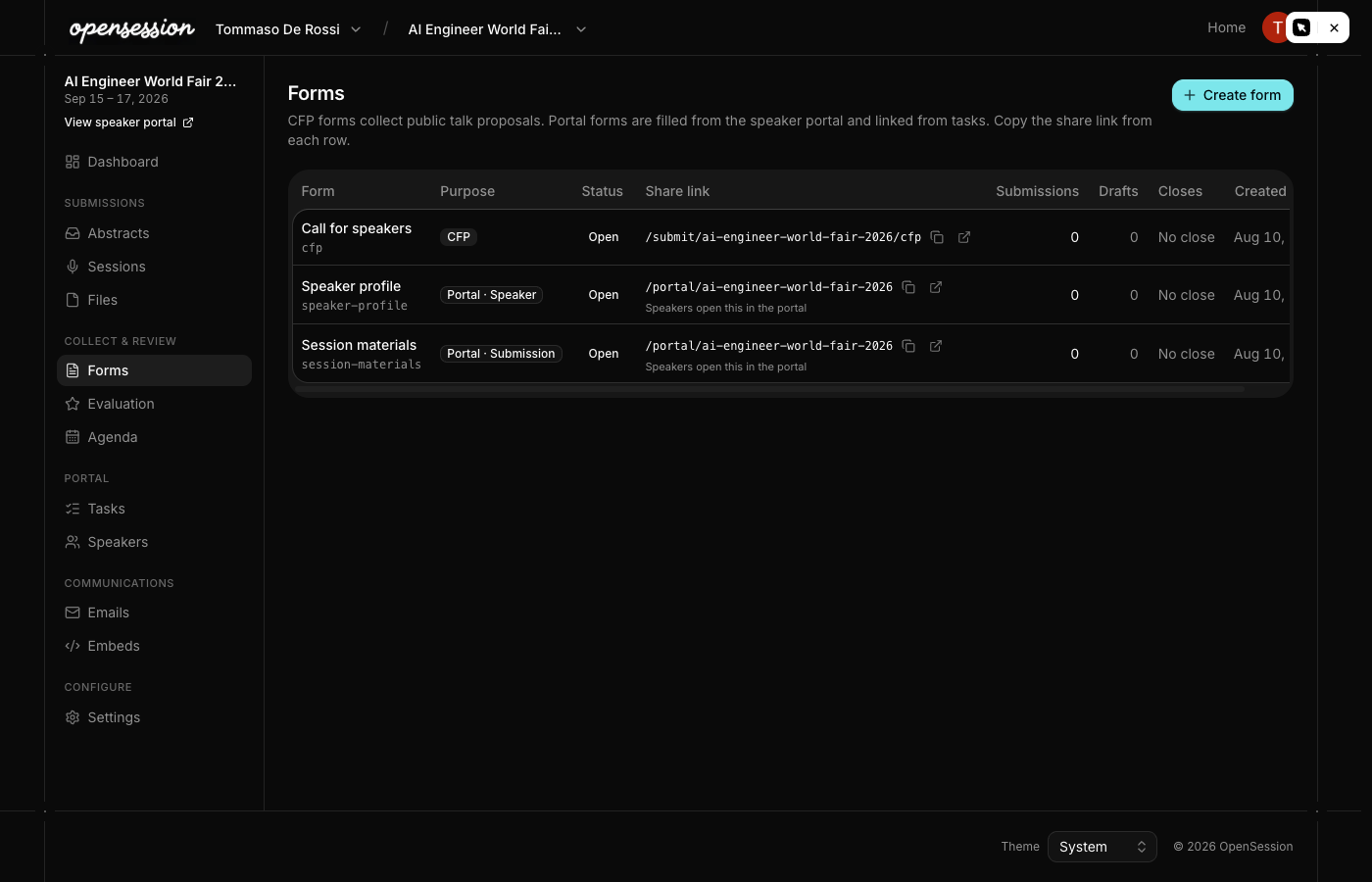
The admin Tasks page shows every task definition and its assignment progress. For
each task, you can see:
- How many speakers have completed it
- A progress bar showing completion percentage
- Individual assignment status per speaker
- Due dates (optional, per assignment)

Automated reminders
OpenSession sends automatic reminder emails when tasks are approaching their due date:
| Reminder | When |
| First warning | 3 days before due date |
| Second warning | 1 day before due date |
| Overdue notice | After the due date passes |
Reminders are deduplicated by day, so a speaker never gets the same reminder twice
on the same day. The cron job runs every 5 minutes and processes the outbox in batches.
File uploads
Speakers upload files (headshots, slides, cover images) through the portal forms.
Files are stored in Cloudflare R2 with a structured storage key:
{eventId}/{ulid}/{filename}. The admin can view and download all uploaded files
from the Files page in the dashboard.Speaker management
The admin Speakers page lists all speakers across the event with status tabs:
| Tab | Shows |
| All | Every speaker record |
| Confirmed | Speakers who completed their profile |
| Pending | Speakers who have not yet completed onboarding |
| Declined | Speakers who declined participation |
Each speaker row shows their name, email, company, sessions, headshot, linked user
status, and outstanding task count.